


Canva is a free-to-use design software that’s taken the world by storm. Many individuals and businesses alike are using Canva to design all kinds of things, from brochures and invitations to social media graphics and even CVs.
Canva also offers a print service – however without the right settings, sizings and colours, this can often arrive looking far from expected. Avoid a costly redesign fee from either Canva – or us – with these handy tips.
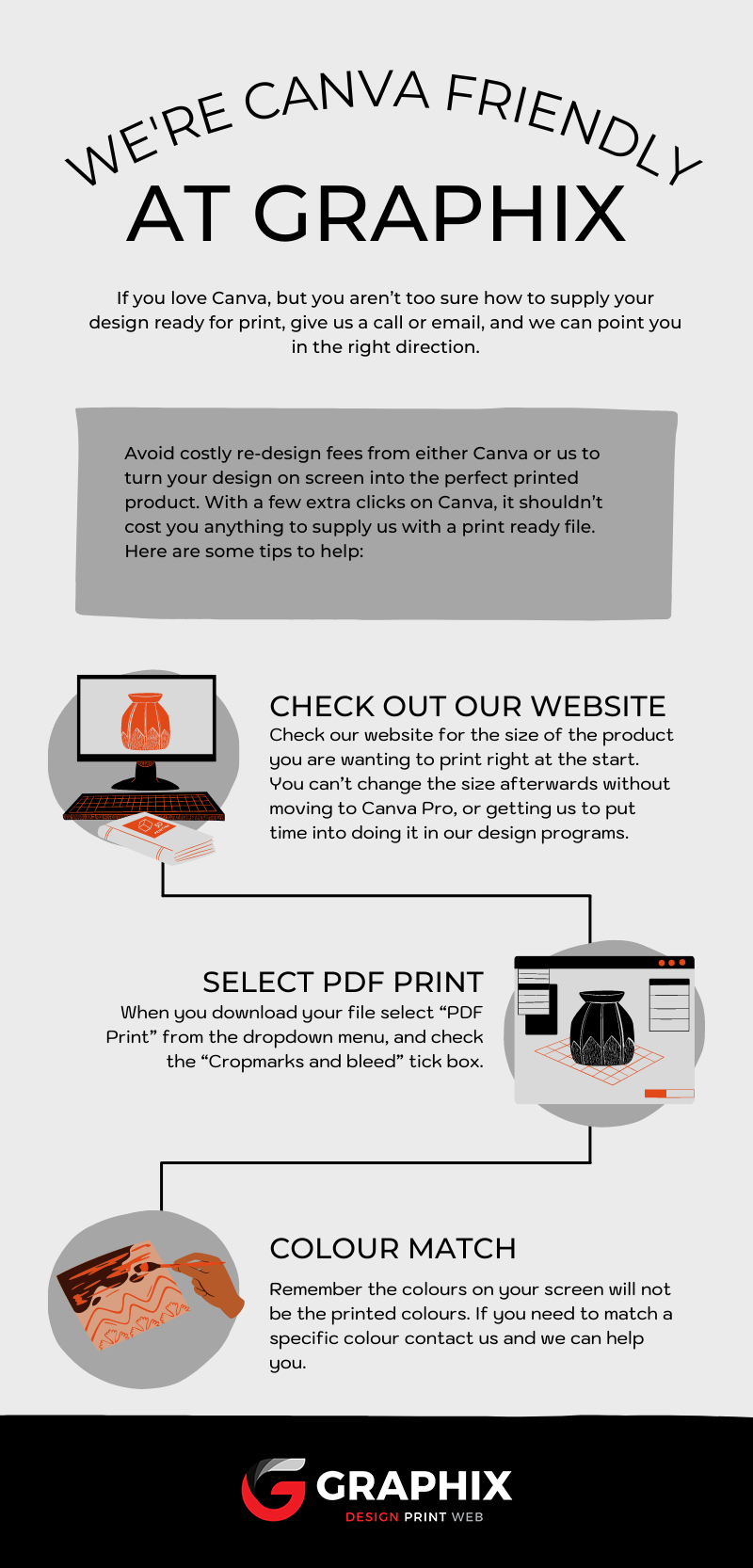
We’re Canva Friendly
Prefer to design your own materials using a software you’re familiar with? We won’t hold that against you – we are more than happy to print designs made in Canva. We want to make sure, though, that you get the results you need, first time. Without a Canva Pro subscription, options can be limited – particularly in terms of resizing your design. Let’s get you print-ready!
Size Does Matter
If you know what medium you’re going to be printing on, check out our website for exact measurements and enter them into Canva BEFORE you start designing. Re-sizing can only be done with a paid subscription, and if we need to do it for you we’ll have to spend time in one of our design systems – increasing your end bill.
How to:
1. Head to the Graphix website and note down your required measurements
2. Open Canva
3. Select “Custom Size”
4. Enter the dimensions you’ve noted down
5. Let your creativity flow!
Printers Prefer it Prepped
Once you’ve finished creating your perfect design, how you download the image to send it off for print is important.
A little bit of prep goes a long way – you don’t want to end up with only half an image, missing letters or information!
PDF Print is the best option here – you’ll need to select it from the drop-down menu that shows up after you’ve clicked “Download”.
Below that, you’ll spot a checkbox that states “Crop Marks and Bleed” – this might make your design look like it has some unusual marks on it on screen, but trust us – this is how the printer likes it!
Once you’ve selected these two options, you’re good to go ahead and click that download button.
Consider Your Colours
It’s super important to remember that colours show up differently on every monitor, and it’s highly likely the colours on your screen will look slightly different once printed.
If there’s a specific colour you need matched perfectly, contact us and we can help you make sure it turns out just right.
Ready, set, print!
Got your design the right size and format? It’s time to send it through – attach that PDF to an email and get in touch to get the process underway.
If you’re still a little stuck, have questions or need some guidance, our team of experts are here to help you. Reach out online or give us a call today!
Important conditions of use to be aware of with respect to logos.
If you use Canva to create a logo, whether with the Free or Pro versions, they are very clear as to what’s allowed and you should definitely check their T&Cs under ‘Licenses, copyright, and using Canva for commercial purposes’ (links below)
Key points however include:
1- You can’t trademark designs with stock media (ie. Canva’s photos and graphics, etc), so be careful using it in logos.
2- You can’t use Free or Pro content as part of a trademark, design mark, trade name, business name, service mark, or logo as a trademark has to be a unique symbol. (More about this in the ‘Trademarking logos’ link below.)
3- In creating a unique logo in Canva from scratch, you can use basic lines and shapes from their Free library. You can also use all of their fonts. However, if you want to trademark your logo, you can’t use their stock content as Canva only give you a non-exclusive license to this.
As other Canva users are free to use the same content, using non-exclusive stock content for your logos isn’t suitable for use in a trademark as all elements in a logo need to be exclusive to you.
4- Similarly, if you’re using Canva’s customisable templates to create a logo, the templates can be used by anyone, meaning that your rights to the logo are non-exclusive and you can’t register it as a trademark.
Trademarking logos created on Canva:
https://www.canva.com/help/article/trademarks-logo
Licenses, copyright, and using Canva for commercial purposes:
https://www.canva.com/…/licenses-copyright-commercial-use/

Trademarking logos created on Canva – Canva Help Center
If you need help with your logo design or brand refresh, please get in touch.